Microsoft Intune: Setting Up Mobile Device Management for Philippine SMEs
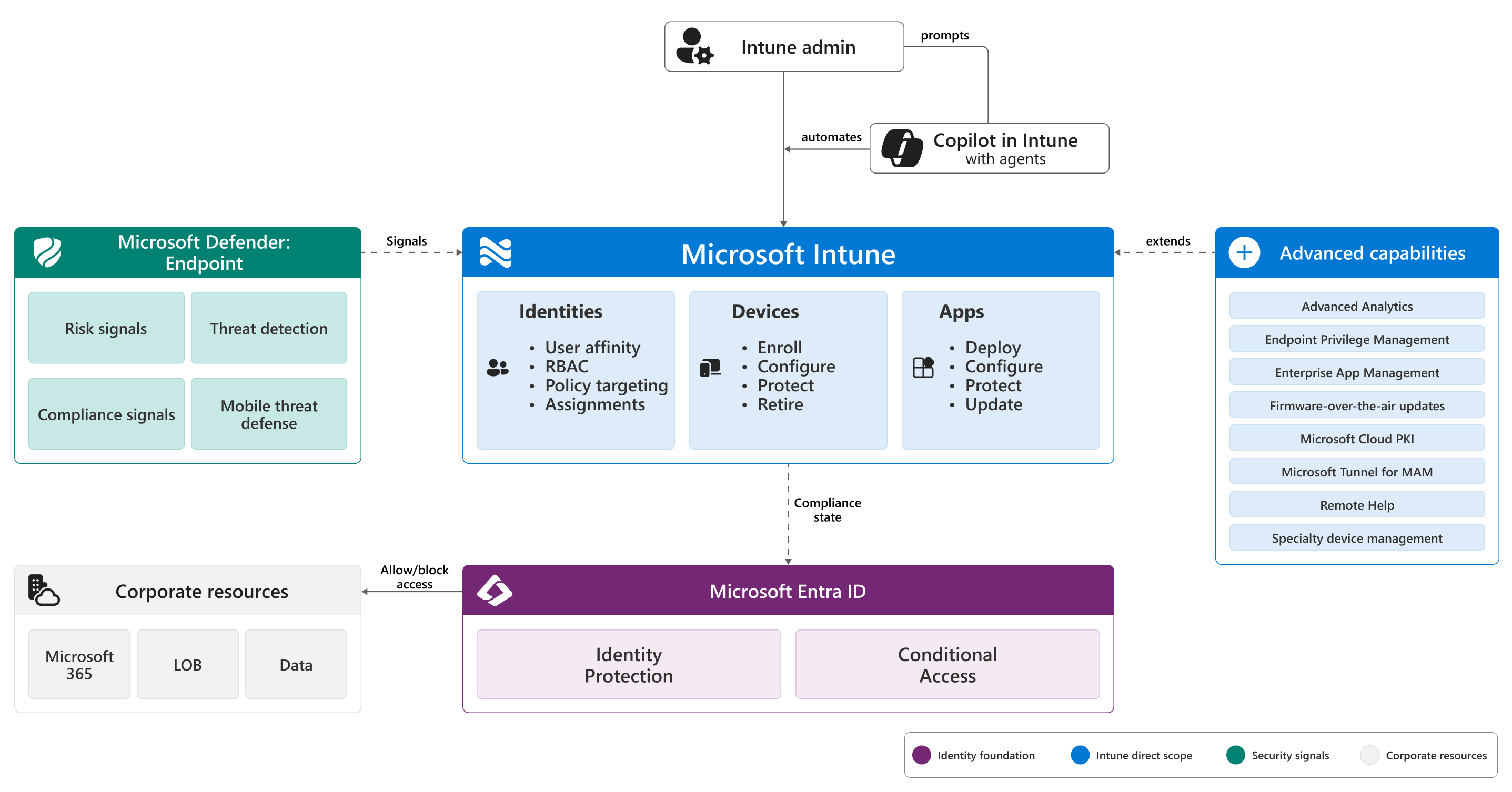
Microsoft Intune is the device management component of Microsoft 365 — available at no additional cost in Business Premium licences. It manages Windows, macOS, iOS, and Android devices from a single cloud-based console, allowing IT administrators to:
- Enforce security policies (PIN requirements, encryption, screen lock)
- Deploy and remove applications remotely
- Wipe devices that are lost, stolen, or belong to departing staff
- Verify device compliance before allowing access to M365 resources
- Configure Windows PCs remotely without on-premise management servers
For Philippine SMEs with 10–300 users whose staff work on laptops, take company data home on personal phones, or access Microsoft 365 from unmanaged devices, Intune is the most practical path to closing the device security gap.
Why Unmanaged Devices Are a Problem
The Philippines has a significant and growing remote and hybrid work footprint. Staff access Microsoft 365 — Teams, SharePoint, Outlook, OneDrive — from personal laptops and mobile phones that the organisation cannot see, configure, or secure.
An unmanaged device:
- May run outdated operating systems with known vulnerabilities
- May not have encryption enabled
- May not have a PIN or screen lock
- Cannot be remotely wiped if lost or stolen
- Cannot have company apps deployed or removed centrally
- Cannot be blocked from M365 access when the employee leaves
Intune addresses all of these. Combined with Entra ID Conditional Access (which requires device compliance before allowing M365 access), Intune creates a complete device security posture.
Licensing: What You Get
Microsoft 365 Business Premium (USD $22/user/month): Includes Intune as a full device management platform. This is the recommended licence tier for any Philippine SME taking device management seriously.
Microsoft 365 E3: Includes Intune for PC management; does not include all mobile management features without add-on.
Intune standalone: Available as USD $8/user/month for organisations that only need Intune without the full M365 suite.
Setting Up Intune: Step-by-Step
Step 1 — Access the Intune Admin Centre
Navigate to intune.microsoft.com and sign in with your Global Administrator credentials.
On first access, verify that your Intune licence is active under Tenant administration → Licences.
Step 2 — Set the MDM Authority
Intune admin centre → Tenant administration → Mobile Device Management Authority
Set to "Microsoft Intune" — this confirms Intune (not another MDM service) manages devices.
Step 3 — Configure Device Categories (Optional)
Create categories that appear during enrolment: Finance, Operations, IT, Executive. This helps organise the device inventory by department.
Intune admin centre → Device → Device categories
Step 4 — Create Compliance Policies
Compliance policies define what makes a device "compliant." Non-compliant devices can be blocked from accessing M365 resources via Conditional Access.
For Windows 10/11:
- BitLocker encryption required
- Minimum OS version (Windows 11 22H2 or later recommended)
- Firewall must be enabled
- Antivirus must be enabled and up to date
- Screen lock timeout: 15 minutes maximum
For iOS/iPadOS:
- Minimum iOS version
- Device passcode required (minimum 6 digits)
- Jailbreak detection
For Android:
- Minimum Android version
- Device PIN required
- Root detection
Intune admin centre → Devices → Compliance policies → Create policy
Select platform → configure requirements → assign to user groups.
Step 5 — Configure Device Configuration Profiles
Configuration profiles push settings to managed devices:
Windows — recommended baseline profiles:
- Endpoint Protection: Windows Defender settings, firewall, exploit protection
- Account Protection: credential guard, local administrator account restrictions
- Windows Update: configure update rings (deferral period, maintenance windows)
- Wi-Fi: deploy corporate Wi-Fi credentials to enrolled Windows devices
iOS/Android — recommended profiles:
- Email: configure corporate Exchange account on managed phones
- Wi-Fi: corporate Wi-Fi credentials
- Restrictions: disable device camera (for specific security-sensitive roles), prevent app install from unknown sources
Intune admin centre → Devices → Configuration profiles → Create profile
Step 6 — Deploy Applications
Intune can push Microsoft 365 apps, line-of-business applications, and Store apps to managed devices.
For Microsoft 365 Apps (Word, Excel, Teams, etc.): Intune admin centre → Apps → Windows → Add → Microsoft 365 Apps for Windows Select which apps to deploy, assign to All Devices or specific groups.
For line-of-business apps (custom .msi or .exe): Wrap the installer as an Intune Win32 app using the IntuneWinAppUtil packaging tool.
Step 7 — Enable Windows Autopilot
Windows Autopilot allows new Windows PCs to configure themselves automatically when connected to the internet — no IT technician or imaging server required. The PC authenticates with Entra ID, downloads the Intune configuration profile, and installs all required apps automatically.
Setup:
- Purchase Windows PCs from an Autopilot-registered reseller (or upload hardware hashes manually via Intune admin centre → Devices → Windows enrollment → Devices)
- Create an Autopilot deployment profile: Intune admin centre → Devices → Windows enrollment → Deployment profiles → Create profile
- Assign the deployment profile to the device group
- When a new PC is unboxed and connected to the internet, it configures itself with the corporate profile, installs apps, and presents the user with a sign-in prompt for their Entra ID account
For Philippine SMEs distributing laptops to remote staff, Autopilot eliminates the need to ship pre-imaged devices — a standard purchase from a retailer becomes a managed corporate device automatically.
Step 8 — Configure App Protection Policies (MAM for BYOD)
For personal devices where staff do not want full MDM enrolment, App Protection Policies enforce security requirements on specific managed apps without managing the device itself:
- Require PIN to open Outlook, Teams, OneDrive
- Prevent copy-paste from managed apps to personal apps
- Block screenshots within managed apps
- Selectively wipe corporate data from managed apps when staff leave — without touching personal data
Intune admin centre → Apps → App protection policies → Create policy
This is the recommended approach for Philippine BYOD environments where staff object to full device enrolment.
Connecting Intune to Conditional Access
The value of Intune multiplies when combined with Entra ID Conditional Access:
Create a Conditional Access policy:
- Require device to be marked as compliant (managed by Intune and meeting compliance policy)
- Apply to: All users, SharePoint and Exchange apps
- This blocks any device not enrolled in Intune and compliant from accessing SharePoint and email
Intune admin centre → Endpoint security → Conditional Access → New policy
After this policy is enabled, a personal phone or laptop that is not Intune-enrolled cannot access SharePoint or Outlook — it will be directed to enrol in Intune first.
For Philippine SMEs deploying Microsoft Intune as part of a Microsoft 365 Business Premium rollout, get in touch.
Related reading: Conditional Access Policies for M365 · MDM for Philippine Businesses: Platform Comparison · Zero Trust Security for Philippine Businesses
Talk to our Cloud & I.T. team →