Conditional Access for Microsoft 365: The 5 Policies Every Philippine Office Needs
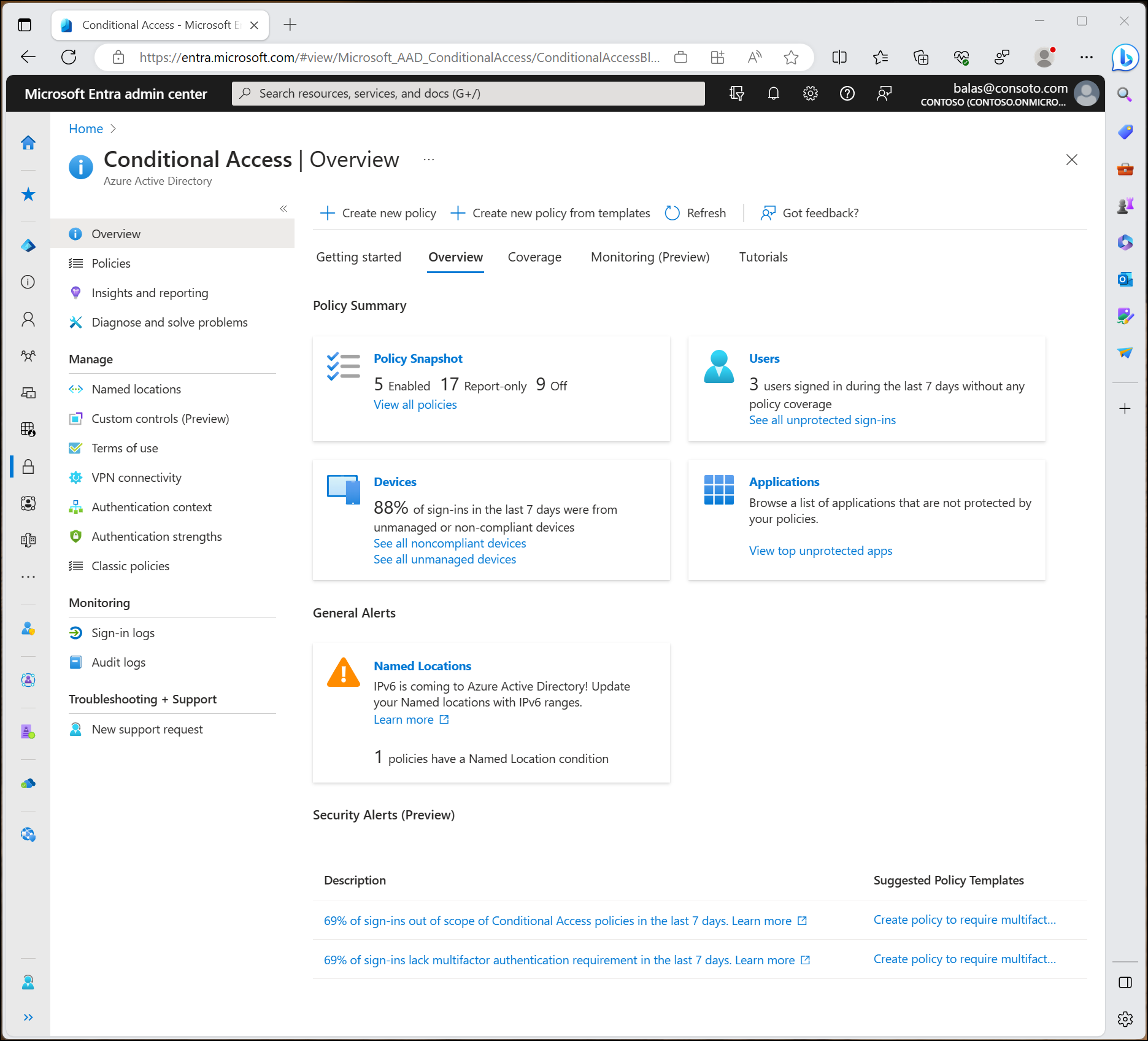
Conditional Access (CA) is the policy engine in Microsoft Entra ID that sits between a user's authentication and their access to Microsoft 365 resources. When a user signs in, Conditional Access evaluates a set of signals — who the user is, what device they are on, where they are, what they are trying to access — and applies a policy: allow, require MFA, require a compliant device, or block.
Without Conditional Access, MFA enforcement in Microsoft 365 is all-or-nothing (Security Defaults) or absent. With Conditional Access, you can require MFA only for specific conditions (risky sign-ins, access from new devices, access to sensitive applications), exempt trusted devices from repetitive MFA prompts, and block known-bad patterns entirely.
Conditional Access is available on:
- Microsoft 365 Business Premium (Entra ID P1 included)
- Microsoft 365 E3 (Entra ID P1 included)
- Microsoft 365 E5 (Entra ID P2 included)
It is NOT available on Business Standard or Business Basic — those tiers should use Security Defaults instead.
Before Creating Policies: Critical Prerequisites
1. Disable Security Defaults before enabling Conditional Access. Security Defaults and Conditional Access cannot coexist. Disabling Security Defaults before creating CA policies leaves a window with no protection — complete the first CA policy (MFA for all users) before disabling Security Defaults.
2. Always test in Report-Only mode first. Conditional Access policies can be set to "Report-only" — they evaluate and log what would happen, but do not enforce. Deploy every new policy in Report-only, review the sign-in logs for 48 hours, confirm there are no unintended blocks, then switch to "On."
3. Maintain a break-glass admin account excluded from all policies. One emergency Global Admin account excluded from all CA policies provides a recovery path if a CA misconfiguration locks everyone out.
Policy 1: Require MFA for All Users
What it does: Requires all users to complete MFA for every sign-in to Microsoft 365. This is the foundational policy that blocks credential-based attacks — even with a stolen password, the attacker cannot authenticate without the second factor.
Configuration:
- Users: All users (exclude break-glass account)
- Cloud apps: All cloud apps
- Conditions: none (apply always)
- Grant: Require MFA
Recommendation for Philippine offices: Allow MFA to be satisfied by the Microsoft Authenticator app push notification. This is the most user-friendly and most secure method. Do not rely on SMS MFA — SIM swap attacks are a real risk in the Philippines.
Trusted device exception (optional): Add "Require MFA or Hybrid Azure AD joined device" to reduce friction for staff on managed corporate devices. This requires Intune device compliance.
Policy 2: Block Legacy Authentication
What it does: Blocks sign-in via legacy protocols (SMTP, IMAP, POP, ActiveSync) that do not support MFA. An attacker with a stolen password can bypass MFA entirely using legacy auth unless it is explicitly blocked.
Configuration:
- Users: All users
- Cloud apps: All cloud apps
- Conditions: Client apps → Exchange ActiveSync clients + Other clients (legacy auth)
- Grant: Block
Important caveat: Before enabling this policy, identify any applications or devices using legacy auth:
- Printers or scanners sending email via SMTP (Office 365 SMTP relay)
- Line-of-business applications authenticating via BasicAuth
- Older mobile email clients
Create service account exceptions for legitimate legacy auth use cases before blocking all users. The M365 sign-in logs show legacy authentication sign-ins — use this to identify what to exempt before deploying.
Policy 3: Require MFA for Admin Accounts (Stricter)
What it does: Applies stricter MFA requirements to privileged accounts — Global Admins, Exchange Admins, SharePoint Admins, and other role holders. Admins have the highest-value accounts for attackers.
Configuration:
- Users: Directory roles → Global Administrator, Exchange Administrator, SharePoint Administrator, User Administrator, Security Administrator (and any other admin roles in use)
- Cloud apps: All cloud apps
- Conditions: none
- Grant: Require MFA + Require MFA to be completed every time (disable "Remember MFA for X days" for admins)
Additional recommendation: Combine with Entra ID P2's Privileged Identity Management (PIM) for just-in-time admin activation — admins only have elevated rights for the duration of a specific task, not permanently.
Policy 4: Block Access from High-Risk Countries
What it does: Blocks sign-in attempts from countries where your organisation has no business operations. This eliminates the bulk of automated credential stuffing and brute force attacks that originate from specific geographic regions.
Configuration:
- Users: All users (exclude break-glass account)
- Cloud apps: All cloud apps
- Conditions: Locations → Selected locations → exclude Philippines and any other countries where staff legitimately work
- Grant: Block
Named Locations setup: First create a Named Location in Entra ID → Security → Named Locations that includes all countries where your staff work: Philippines, plus any other countries for international staff or remote workers.
Philippine-specific note: If staff travel internationally for work, they will be blocked by this policy while abroad. Solution: require MFA instead of blocking for travel countries, and configure a process for staff to request temporary access when travelling.
Policy 5: Require Compliant Device for Sensitive Applications
What it does: Requires that devices accessing SharePoint, Exchange, or other sensitive applications be enrolled in Intune and comply with your device compliance policies. Unmanaged personal devices can still access Teams (for communication) but not the most sensitive data.
Configuration:
- Users: All users (or a subset — finance, HR, IT)
- Cloud apps: SharePoint, Exchange (or specific apps)
- Conditions: none (or filter by platform — Windows, macOS, iOS, Android)
- Grant: Require device to be marked as compliant
Prerequisites: Device compliance policies must be configured in Intune before this policy is enabled. Without Intune, no device is "compliant" and all users will be blocked.
Recommended device compliance minimum (Philippine office context):
- BitLocker encryption required (Windows)
- FileVault required (macOS)
- Device PIN required (iOS, Android)
- Operating system version at minimum required versions
- No jailbreak/root detection
Deployment Order
Deploy policies in this order to minimise risk:
- Policy 1 (MFA for all users) — Report-only for 48 hours, then On
- Policy 3 (Admin MFA stricter) — Report-only, then On
- Policy 2 (Block legacy auth) — Identify exceptions first, then Report-only, then On
- Policy 4 (Block risky countries) — Report-only for 1 week, review travel patterns, then On
- Policy 5 (Compliant device) — Only after Intune is fully deployed and all devices enrolled
Monitoring and Ongoing Management
Sign-in logs (Entra ID → Monitoring → Sign-in logs): Review weekly for:
- Failed sign-ins from unexpected locations
- Legacy authentication attempts (blocked by Policy 2)
- Users frequently failing MFA (possible phishing target)
CA policy evaluation logs: Each sign-in log entry shows which CA policies were evaluated and their result (success, failure, blocked). Use Report-only mode for new policies before enforcing.
Monthly review: Verify the break-glass account is excluded from all policies and still accessible. Test MFA for a sample of users. Review any new applications that may need CA policy updates.
For Philippine organisations deploying or auditing Microsoft 365 Conditional Access, get in touch.
Related reading: Microsoft Entra ID for Philippine SMEs · Microsoft Intune MDM Setup · Zero Trust Security for Philippine Businesses
Talk to our Cloud & I.T. team →