Microsoft Entra ID for Philippine SMEs: What It Is, Why You Need It, and How to Set It Up
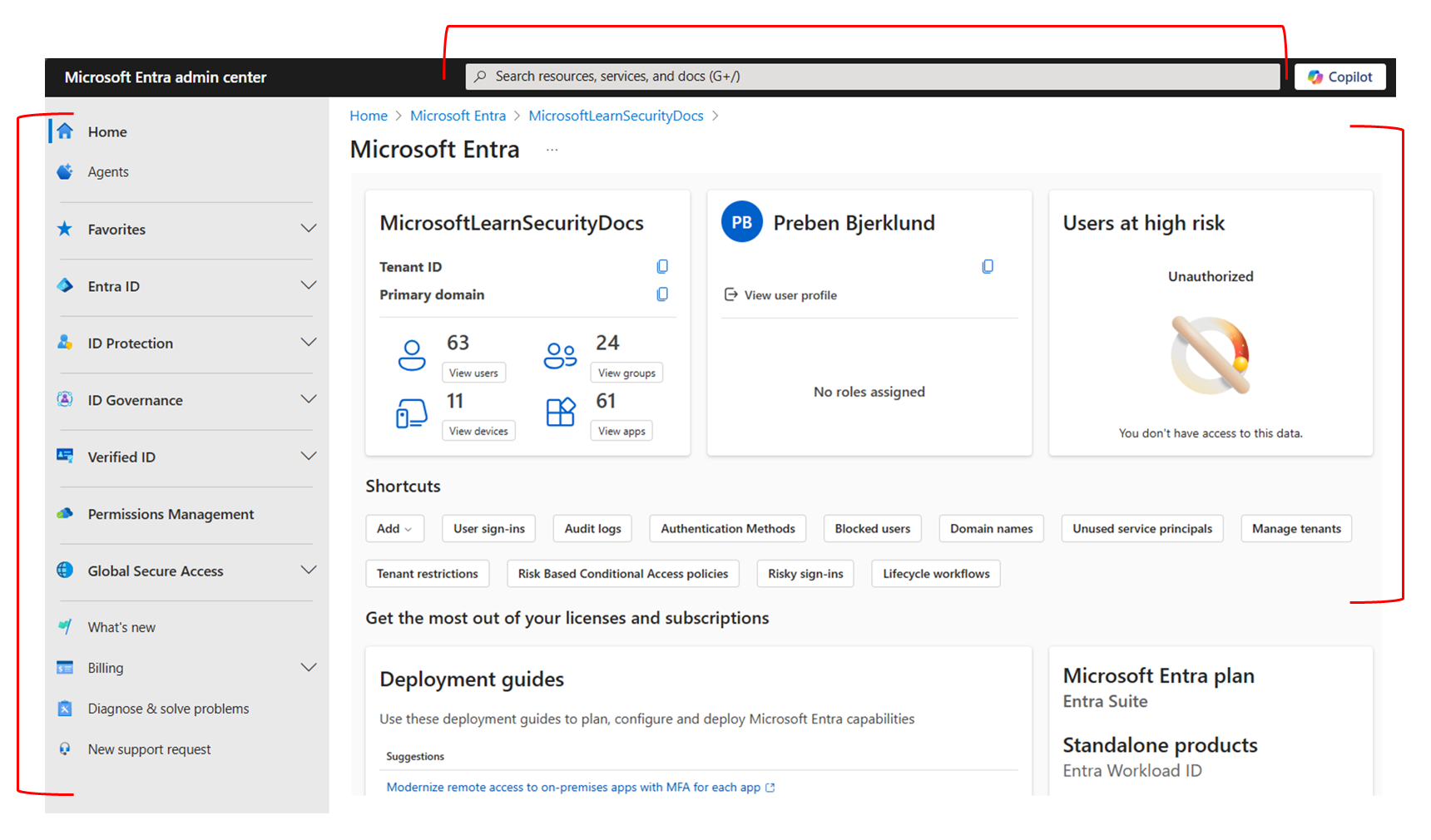
Microsoft Entra ID — rebranded from Azure Active Directory in 2023 — is Microsoft's cloud identity and access management platform. It is the foundation that every Microsoft 365 and Azure service is built on. When a user signs into Teams, Outlook, SharePoint, or any Microsoft application, Entra ID handles the authentication. When an administrator sets access policies, manages devices, or enforces multi-factor authentication, they are working in Entra ID.
For Philippine SMEs, Entra ID is not optional infrastructure — it is the prerequisite for almost every cloud and AI capability Microsoft offers. Microsoft Copilot requires Entra ID. Azure services require Entra ID. Intune device management requires Entra ID. Microsoft Defender for Business requires Entra ID.
Understanding what Entra ID is and how to configure it correctly is therefore one of the most high-leverage IT decisions a Philippine SME can make.
What Entra ID Does
Identity Management
Entra ID manages user accounts, group memberships, and application access across the entire Microsoft ecosystem. Every person who needs access to Microsoft services — email, Teams, SharePoint, business applications — has an Entra ID account.
The practical implication for Philippine SMEs: when an employee joins, they get one account in Entra ID, and that account gives them access to everything they are permitted to access. When they leave, disabling that one account removes access to everything. This is the identity hygiene that most Philippine SMEs using on-premise Active Directory or individual application accounts do not have.
Authentication and Multi-Factor Authentication (MFA)
Entra ID enforces how users authenticate. This includes:
- Password policies — minimum length, complexity, expiration (Microsoft now recommends against frequent forced password changes, favouring longer passwords + MFA instead)
- Multi-factor authentication (MFA) — requires a second factor (authenticator app, SMS, hardware key) in addition to password. MFA blocks the vast majority of credential-based attacks.
- Conditional Access — rules that determine when MFA is required, which devices can access company resources, and from which locations. Example: require MFA for all logins from outside the Philippines; block access from unmanaged personal devices.
Application Access Management
Entra ID is the single point of control for which users can access which applications. Enterprise applications — Microsoft 365 apps, Azure services, Salesforce, Zoom, DocuSign, and hundreds of others — are registered in Entra ID and access is granted by policy, not by individual application credentials.
Philippine SME application: instead of managing separate usernames and passwords in Xero, Zoho, and HubSpot, users authenticate via their Entra ID account (Single Sign-On), and administrators control access centrally.
Licensing: What You Get at Each Tier
Entra ID comes in three tiers:
| Tier | What's Included | Bundled With |
|---|---|---|
| Entra ID Free | Basic user management, MFA, SSO for Microsoft apps | All Microsoft 365 plans |
| Entra ID P1 | Conditional Access, group-based licensing, self-service password reset, Intune integration | Microsoft 365 Business Premium, E3 |
| Entra ID P2 | P1 + Identity Protection (risk-based conditional access), Privileged Identity Management | Microsoft 365 E5 |
For most Philippine SMEs, Microsoft 365 Business Premium (which includes Entra ID P1) provides the appropriate level of identity management. The P1 tier adds Conditional Access — the policy engine that enforces MFA requirements, device compliance, and location-based access rules — which is the most practically important feature beyond basic MFA.
Setting Up Entra ID for a Philippine SME
Step 1 — Create or Verify Your Microsoft 365 Tenant
Your Entra ID tenant is created automatically when you set up a Microsoft 365 subscription. If you already have M365, you already have an Entra ID tenant — the question is whether it is configured correctly.
Access your tenant at: entra.microsoft.com (sign in with your Microsoft 365 global administrator account).
Step 2 — Add Your Custom Domain
By default, your tenant uses a .onmicrosoft.com domain. For Philippine SMEs, adding your company's domain (e.g., yourcompany.com.ph or yourcompany.ph) is required for professional email addresses and clean identity.
In Entra ID admin centre: Settings → Domain names → Add custom domain
Verify ownership via DNS TXT record — your domain registrar (or Technica, if we manage your domain) needs to add the verification record.
Step 3 — Create User Accounts
Add all users who need access to Microsoft services. Options:
- Manual creation — for small teams (under 20 users), create accounts individually in Entra admin centre
- Bulk import — for larger teams, use the CSV import or PowerShell
- Sync from on-premise Active Directory — if you have an existing on-premise Active Directory server, Microsoft Entra Connect syncs your existing users to the cloud tenant
Philippine SME note: For most SMEs without existing on-premise AD, clean cloud-only identity (all users created directly in Entra ID) is simpler than hybrid sync and should be the default choice.
Step 4 — Enable Multi-Factor Authentication
Navigate to: Entra ID → Users → Per-user MFA (for immediate MFA enforcement) or configure Security Defaults (simpler, turns on MFA for all users with Microsoft Authenticator app).
For Microsoft 365 Business Premium tenants, use Conditional Access policies instead of Security Defaults — they provide more granular control.
Recommended baseline Conditional Access policies for Philippine SMEs:
- Require MFA for all users — MFA required on every sign-in (with trusted device exception to avoid friction on company-managed devices)
- Block legacy authentication — prevents sign-in via older protocols (SMTP, IMAP) that do not support MFA and are commonly exploited
- Require compliant device for sensitive apps — for organisations managing devices with Intune, require device compliance for SharePoint and Exchange access
Step 5 — Configure Self-Service Password Reset
Reduces IT support burden significantly — users can reset their own passwords via the SSPR portal without calling IT.
Navigate to: Entra ID → Password reset → Properties → Enable for all users.
Require two authentication methods for reset (authenticator app + email, or authenticator app + phone number).
Step 6 — Review and Assign Licences
All M365 licences are assigned through Entra ID. Verify that:
- All active users have the correct licence assigned
- Former employees are disabled (not deleted — disabling preserves mailbox data for the licence period)
- Licences are not assigned to disabled accounts (wasted licence spend)
Common Configuration Mistakes
Not enabling MFA. The single most impactful security configuration for a Philippine SME is MFA on all accounts. Business email compromise (BEC) attacks — where attackers gain access to an executive's email account and redirect payment instructions — are among the most financially damaging incidents for Philippine SMEs. MFA blocks the credential theft that enables BEC. See our email security guide for the full picture on how BEC works.
Using the Global Administrator account for daily work. The Global Administrator account has unlimited access to everything in the tenant. It should be used only for administrative tasks. Create separate, lower-privilege accounts for daily work. Consider using Privileged Identity Management (P2) for just-in-time admin access if budget allows.
Not disabling former employee accounts immediately. Every day a former employee account remains active is a security exposure. Establish an offboarding procedure that includes immediate Entra ID account disabling on the last day of employment.
Allowing legacy authentication. SMTP and IMAP authentication bypass MFA entirely. Block them via Conditional Access unless there is a specific application requirement.
For Philippine SMEs setting up Microsoft 365 and Entra ID from scratch or auditing an existing tenant, get in touch.
Related reading: Conditional Access Policies for M365 · Microsoft Intune MDM Setup · Email Security for Philippine Businesses
Talk to our Cloud & I.T. team →