How to Upgrade Your Office to Wi-Fi 7 Without Wasting Budget
IDC forecasts 120 million enterprise Wi-Fi 7 access point shipments by end of 2026 — a 210% increase over 2025. Ubiquiti, Cisco, and Aruba have all launched Wi-Fi 7 hardware. The upgrade cycle is real.
But most office Wi-Fi 7 projects overspend or underdeliver because they treat it as a simple access point swap. It is not. The switches feeding the APs, the cabling between them, and the client devices connecting to them all determine whether your investment delivers anything beyond a spec sheet improvement.
This guide covers what actually changes, what needs to be upgraded before the APs, and when Wi-Fi 7 is not worth the spend.
What Wi-Fi 7 Actually Delivers
Wi-Fi 7 (802.11be) introduces three capabilities that genuinely change office wireless performance:
Multi-Link Operation (MLO): A Wi-Fi 7 device can connect across 2.4 GHz, 5 GHz, and 6 GHz simultaneously. Traffic is load-balanced across bands in real time. Latency drops. If one band is congested, traffic shifts automatically — without dropping the connection.
320 MHz channels on 6 GHz: Wi-Fi 6 maxed at 160 MHz. Wi-Fi 7's 320 MHz channels on the 6 GHz band deliver peak throughput exceeding 40 Gbps — four times Wi-Fi 6's ceiling. For dense office environments with concurrent video calls, large file transfers, and cloud applications, this matters.
Preamble Puncturing: Wi-Fi 7 can transmit on part of a channel while interference occupies the rest, instead of abandoning the channel entirely. Less congestion in high-density environments.
What has not changed: Wi-Fi 7 still requires line-of-sight-ish propagation. Walls, glass partitions, and RF interference still affect coverage. Adding more APs with better technology does not fix a poorly planned RF environment.
Step 1 — Audit Your PoE Switch Infrastructure First
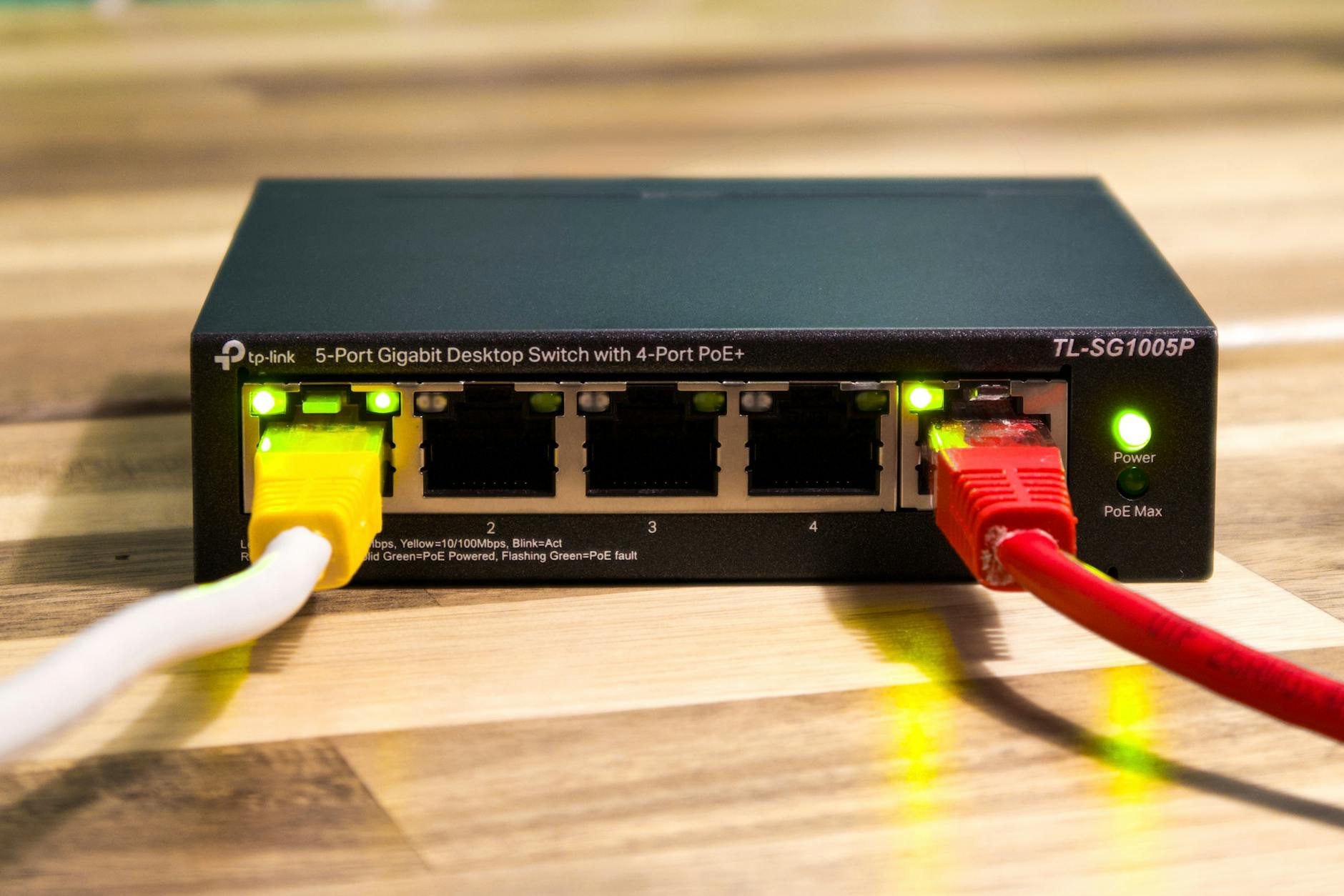
This is where most Philippine office upgrades fail. Wi-Fi 7 APs draw significantly more power than their predecessors.
| Generation | Typical Power Draw | PoE Standard Required |
|---|---|---|
| Wi-Fi 5 AP | 12–15W | 802.3af (PoE, 15.4W) |
| Wi-Fi 6 AP | 20–25W | 802.3at (PoE+, 30W) |
| Wi-Fi 7 AP (flagship) | 30–45W | 802.3bt (PoE++, 60–90W) |
If your switches max out at 15.4W or 30W per port, flagship Wi-Fi 7 APs will either not power on or throttle their radios. Audit every switch in your stack before purchasing APs.
What to check:
- Per-port PoE budget on each switch
- Total switch PoE budget — even a 90W-per-port switch has a total budget cap (e.g., 24-port switch at 90W/port does not mean 2,160W total)
- UTP cable category — Wi-Fi 7 multi-gig backhaul works best on Cat6A. Cat5e is limited to 1 Gbps
Budget reality: A 24-port 802.3bt PoE switch costs ₱40,000–₱100,000. This often exceeds the AP budget for mid-size offices. Factor it in before comparing AP prices.
Step 2 — Know When Wi-Fi 6 Is Still the Right Answer
Wi-Fi 7 is not always the right upgrade. The performance gains are real, but only in environments that can actually use them.
Wi-Fi 7 makes sense if:
- You have high-density environments (50+ concurrent users per floor)
- Your team runs bandwidth-intensive applications — 4K video production, large CAD file syncing, on-premise AI inference
- You are building new infrastructure and want 5+ year lifecycle
- Client device refresh is planned alongside the AP upgrade
Wi-Fi 6 is still appropriate if:
- Standard office floor with 20–50 users doing email, video calls, and cloud apps
- Budget constraints mean AP cost savings can fund other priorities
- Current client fleet is predominantly Wi-Fi 6 and below (MLO will not activate anyway)
- Warehouse, retail floor, or light IoT deployments
See our Wi-Fi 6 office upgrade guide for a full comparison and deployment best practices.
MLO — Wi-Fi 7's headline feature — requires Wi-Fi 7 client devices to work. If your laptops and phones are Wi-Fi 6, they connect to Wi-Fi 7 APs as Wi-Fi 6 clients. You get backward compatibility, not MLO.
Step 3 — Plan AP Placement
Wi-Fi 7's 6 GHz band has shorter range than 5 GHz and is absorbed more readily by walls. One-for-one replacement of older APs produces dead zones on 6 GHz.
Coverage planning rules:
- Open office: 1 AP per 90–120 sqm
- Partitioned office (glass/drywall): 1 AP per 60–80 sqm
- Conference rooms: Dedicated AP if room hosts 8+ concurrent users
- Mount height: 2.5–3m ceiling mount for best omnidirectional coverage
- Avoid corners — corner mounting creates uneven coverage patterns
For a 500 sqm open-plan office, plan for 5–6 APs minimum. For a 500 sqm partitioned floor, plan for 7–9.
Step 4 — Choose Your Hardware
| Vendor | Model | Use Case | Approx. Price (USD) |
|---|---|---|---|
| Ubiquiti | U7 Pro, U7 Pro Max | SME, cost-effective enterprise | $199–$399 |
| Cisco | Catalyst CW9178 | Large enterprise, Cisco stack | $800–$1,500 |
| HPE Aruba | AP-770 Series | Enterprise, Aruba Central managed | $600–$1,200 |
| Netgear | WBE750 | SME, standalone or cloud | $299–$499 |
For Philippine SMEs: Ubiquiti's Wi-Fi 7 lineup (U7 Pro) with a UniFi switch stack is the most cost-effective path to a properly managed Wi-Fi 7 environment. Central management, VLAN support, and RF visualisation are included without per-device licensing fees.
For enterprise environments with existing Cisco or Aruba infrastructure: Stay within your existing management platform. Mixing vendors at the management layer creates operational complexity that outweighs hardware savings.
Step 5 — Configure for Your Environment
After installation, tune before declaring success:
- Channel width: Use 80 MHz on 6 GHz in dense deployments. Only go 160 or 320 MHz in low-density areas where overlap is unlikely.
- Band steering: Enable automatic steering to push capable clients to 6 GHz.
- QoS: Prioritise voice and video traffic. Philippine offices running Teams or Zoom across the same AP as bulk file transfers need QoS rules to prevent call quality degradation.
- Guest VLAN: Isolate guest traffic from internal LAN — standard hygiene, not optional.
- WPA3 mandatory: Wi-Fi 7 mandates WPA3-SAE. Enable it. Disable WPA2-only fallback on networks that do not require legacy device support.
Realistic Budget for a Philippine SME Office
| Office Size | APs Required | AP Cost (Ubiquiti U7 Pro) | Switch Upgrade | Total Estimate |
|---|---|---|---|---|
| 100 sqm | 1–2 | ₱22,000–₱44,000 | ₱8,000–₱20,000 | ₱30,000–₱64,000 |
| 300 sqm | 3–4 | ₱66,000–₱88,000 | ₱25,000–₱50,000 | ₱91,000–₱138,000 |
| 500 sqm | 5–6 | ₱110,000–₱132,000 | ₱40,000–₱80,000 | ₱150,000–₱212,000 |
Cabling and installation labour adds 15–25% to hardware cost.
For Wi-Fi 7 planning, site surveys, and deployment across Metro Manila and provincial offices, get in touch with our team.
Related reading: Wi-Fi 6 for Philippine Offices: When to Upgrade and What to Buy · PoE Switch Buyer's Guide for Philippine Offices · Structured Cabling for Philippine Offices
Talk to our I.T. Hardware team →