How to Set Up a NAS Backup Server for Your Philippine SME
Ransomware attacks on Philippine businesses are up sharply in 2026. The threat has evolved: modern ransomware groups don't just encrypt your files — they exfiltrate them first, then threaten to publish under the Data Privacy Act if you don't pay. An attack on a Yamaichi Electronics subsidiary in April confirmed 100GB stolen before detection.
The most practical first layer of protection for an SME is a Network-Attached Storage (NAS) device configured correctly. Done right, it provides on-premise backup that survives ransomware, hardware failure, and accidental deletion — without cloud subscription fees for your primary data copy.
This guide covers how to set one up from scratch.
What a NAS Is (and What It Is Not)
A NAS is a file server dedicated to storage, connected to your office network, and accessible to all authorised devices. Unlike an external hard drive, it runs its own operating system, supports RAID redundancy, schedules automated backups, and can alert you when something goes wrong.
What a NAS is not: your only backup. It lives in your office, which means fire, flood, or theft takes it and your primary data at the same time. It is one layer in a strategy — not the whole strategy.
Step 1 — Choose Your NAS Hardware
Two vendors dominate the Philippine SME market:
| Synology | QNAP | |
|---|---|---|
| OS | DiskStation Manager (DSM) | QTS / QuTS hero |
| Best for | Simplicity, Microsoft 365 integration | Power users, virtualisation, hybrid apps |
| Ransomware protection | Snapshot Replication (immutable) | VJBOD, Snapshot Manager |
| Cloud integration | Synology C2, Hyper Backup | Hybrid Backup Sync |
| Entry SME model | DS223, DS423+ | TS-233, TS-433 |
| Mid-range SME model | DS1522+, DS1823xs+ | TS-873A, TS-1264U-RP |
Recommendation for most Philippine SMEs: Start with a Synology DS423+ (4-bay) or DS1522+ (5-bay). DSM is the most approachable NAS OS, the backup ecosystem is mature, and Microsoft 365 integration is native.
Step 2 — Choose Your Drives
Never use desktop drives in a NAS. Consumer drives are not rated for 24/7 operation and will fail faster under continuous workload.
| Drive Type | Use Case | Examples |
|---|---|---|
| NAS HDDs (7200 RPM) | General backup, file server | WD Red Pro, Seagate IronWolf Pro |
| NAS SSDs | High-performance workloads | WD Red SA500, Seagate IronWolf 510 |
| SED (Self-Encrypting Drive) | Regulated data, PDPA compliance | Seagate IronWolf Pro 110 |
Minimum recommendation: 2 drives in RAID 1 for a 2-bay. 4 drives in RAID 5 or RAID 6 for a 4-bay or larger.
Step 3 — Configure RAID
RAID protects against drive failure — not against ransomware, accidental deletion, or NAS-level failure. Do not confuse redundancy with backup. For a full comparison of RAID levels and which to use for which workload, see our RAID levels explained guide.
| RAID Level | Drives Required | Drives That Can Fail | Best For |
|---|---|---|---|
| RAID 1 | 2 | 1 | Small offices, 2-bay NAS |
| RAID 5 | 3+ | 1 | SME general storage |
| RAID 6 | 4+ | 2 | Server rooms, larger deployments |
| SHR (Synology Hybrid RAID) | 2+ | 1–2 | Mixed drive sizes |
On Synology, set this up through Storage Manager → Storage Pool → Create. On QNAP, use Storage & Snapshots → Storage → Create.
Step 4 — Enable Snapshot Protection
This is the single most important step for ransomware protection. Snapshots capture the state of your shared folders at a point in time. If ransomware encrypts your NAS, you roll back to a clean snapshot.
On Synology:
- Open Snapshot Replication from Package Center.
- Select your shared folder → Snapshot → Settings.
- Enable schedule: every 1–4 hours for active workdays.
- Set retention: keep 24 hourly, 30 daily, 12 monthly.
- Enable Snapshot Lock — this makes snapshots immutable, meaning ransomware cannot delete them even with admin credentials.
On QNAP: Use Snapshot Manager under Storage & Snapshots. Enable quota-controlled snapshots with snapshot locking enabled.
Step 5 — Set Up Automated Backup Jobs
For Windows PCs and Servers
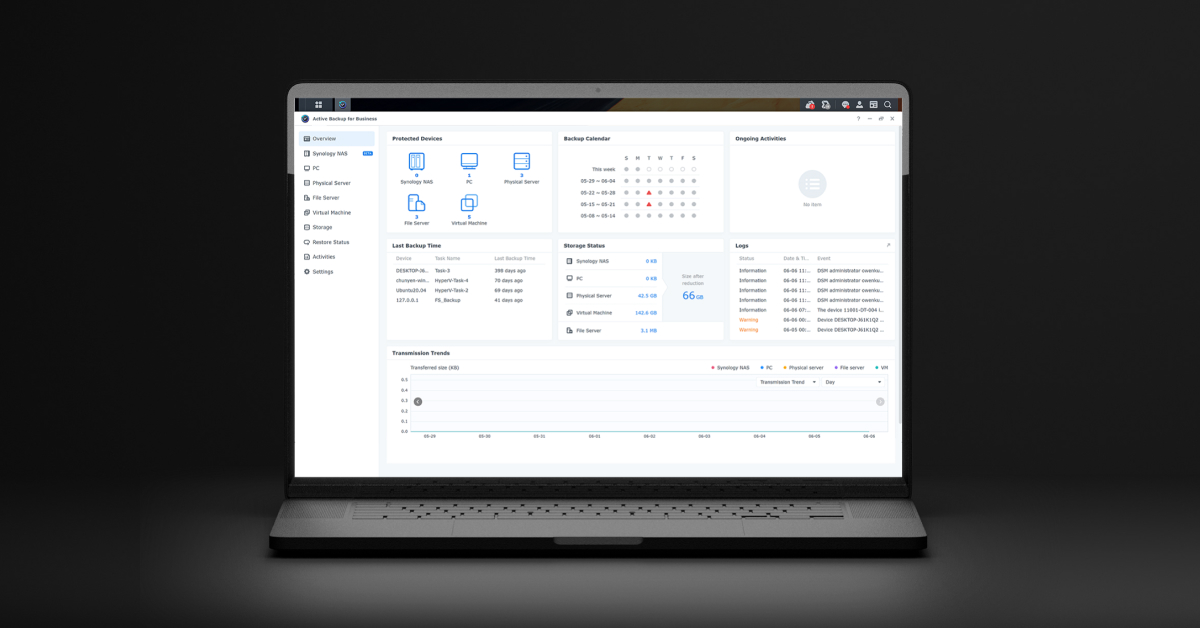
- Synology: Use Active Backup for Business (free, included). Backs up Windows endpoints and Windows Server with versioning.
- QNAP: Use Hybrid Backup Sync or NetBak Replicator for Windows.
For Microsoft 365
- Synology Active Backup for Microsoft 365: Backs up Exchange Online, SharePoint, OneDrive, and Teams to your NAS. Free with Synology hardware.
- This is a critical gap many Philippine businesses miss — Microsoft does not guarantee data recovery for deleted M365 data beyond 30–93 days.
For macOS
- Use Time Machine with the NAS as the target. Both Synology and QNAP support Time Machine natively.
Step 6 — Follow the 3-2-1 Rule
| Copy | Location | Technology |
|---|---|---|
| Primary | Local workstations / servers | Live data |
| Second copy | NAS (on-premise) | Active Backup, Time Machine |
| Third copy | Off-site | Cloud (Synology C2, Backblaze B2, Azure Blob) |
The NAS is your second copy. Off-site replication — whether to the cloud or a second NAS at a different physical location — is your third. Without it, a fire or theft takes both copies at once. For a deeper guide on implementing the full 3-2-1 backup architecture, see our hybrid backup 3-2-1 rule guide for Philippine SMEs.
For off-site cloud backup from Synology, use Hyper Backup → Cloud → select your provider. Backblaze B2 is the most cost-effective option compatible with Synology.
Step 7 — Lock Down Access
A NAS connected to the internet with default credentials is an attack vector, not a protection layer.
- Change the default admin account — disable it entirely and create a named admin.
- Enable two-factor authentication on all NAS admin accounts.
- Restrict NAS management access to the local network only — do not expose DSM or QTS directly to the internet.
- If remote access is needed, use Tailscale or a site-to-site VPN rather than opening NAS ports directly.
- Enable IP auto-block — Synology DSM and QNAP QTS both block IPs after repeated failed logins.
Estimated Cost for a Philippine SME Setup
| Component | Entry (2-bay) | Mid-range (5-bay) |
|---|---|---|
| NAS unit | ₱15,000–₱25,000 | ₱35,000–₱65,000 |
| Drives (2×4TB NAS HDD) | ₱8,000–₱12,000 | ₱20,000–₱35,000 |
| Cloud storage (1TB/mo) | ₱300–₱500/mo | ₱500–₱1,500/mo |
| Total initial | ₱23,000–₱37,000 | ₱55,000–₱100,000 |
For a 10–50 person office, a 4–5 bay Synology with RAID 5, Active Backup for Business, and Hyper Backup to Backblaze B2 is the benchmark setup.
Need help specifying or deploying a NAS for your office? We carry Synology and Seagate IronWolf across the SME range.
Related reading: Synology vs QNAP NAS: Which Is Right for Your Philippine SME? · Hybrid Backup for Philippine SMEs: The 3-2-1 Rule · RAID Levels Explained for Philippine Server Rooms
Talk to our I.T. Hardware team →